How to Track Which Google Search Queries Bring Paying Customers
Learn how to connect Search Console and revenue data so you can see which Google queries lead to sales, not just clicks and traffic.

NoirTrack team·Follow

Track which Google search queries bring paying customers means connecting query data to revenue, then comparing clicks with purchases or goals. The reliable way is to connect Google Search Console to revenue attribution, then compare query-level clicks with purchases or goals. That gives you a ranked view of which searches lead to revenue, not just visits. It works best when your site can identify a conversion and tie it back to the visitor; it does not replace Search Console for ranking data or show exact keywords for every individual sale.
Most SEO reports stop at impressions, clicks, and average position, so you can see traffic without knowing what paid. The useful question is which queries lead to signups, purchases, or booked calls. You need two things to answer it well: search data for the query and revenue or goal data for the conversion. With both in place, you can separate curiosity clicks from searches that actually pay, then focus your effort on the terms that move money.
How do you track Google search queries that lead to sales?
Start with Search Console for the query, page, country, clicks, and impressions, then connect that data to revenue tracking so you can see which searches lead to purchases or signups. That gives you a list of terms that pay, not just terms that bring traffic. If you want to track which Google search queries bring paying customers, you need both sides of the path: the search term from Google and the sale event in your analytics.
What data do you need first?
You need two records for the same visitor journey. Search Console supplies the search query and the landing page, while revenue tracking supplies the purchase, subscription, trial, or lead form that closed the loop. NoirTrack's Search Console connection places those keywords next to the traffic and revenue you already track, and its revenue tracking matches each sale back to the visit that led to it. Read the setup details in how Search Console data connects to your site and how revenue attribution works.
Without both, you can see one side of the story only. Search Console tells you that a query earned 40 clicks. Revenue tracking tells you that a visit bought. Together, they show that the query did both.
What makes a query "paying"?
A paying query appears in the journey of visitors who complete a revenue event or a goal that predicts revenue. That can be a direct sale, a paid subscription, or an earlier action such as starting a trial or submitting a lead form if that action later turns into revenue.
- Match the query to the sale. Look for search terms used by visitors who later bought or signed up.
- Rank by money, not volume. A query with 8 clicks and 2 purchases matters more than one with 120 clicks and no sales.
- Check the assist path. Some queries start the session while another page closes the sale, so the query still deserves credit.
A concrete example makes this clear. If "privacy analytics for SaaS" brings 25 clicks and 3 paid trials, while "website analytics" brings 90 clicks and 0 trials, the first query is the one to keep and expand.
The useful reports sort queries by revenue, conversion rate, or assisted conversions. Clicks still matter, but only as a filter for what to inspect next.
How do you connect Search Console with revenue?
Connecting Google Search Console with revenue means signing in with the Google account that owns your property, then reading keywords, landing pages, and countries beside the revenue data NoirTrack already tracks. Open Search Console integration setup from Site → Settings → Integrations, then connect the property that matches your domain. If your Search Console data already uses revenue tracking, NoirTrack can show the search terms and pages that lead to sales instead of leaving them in a separate report.
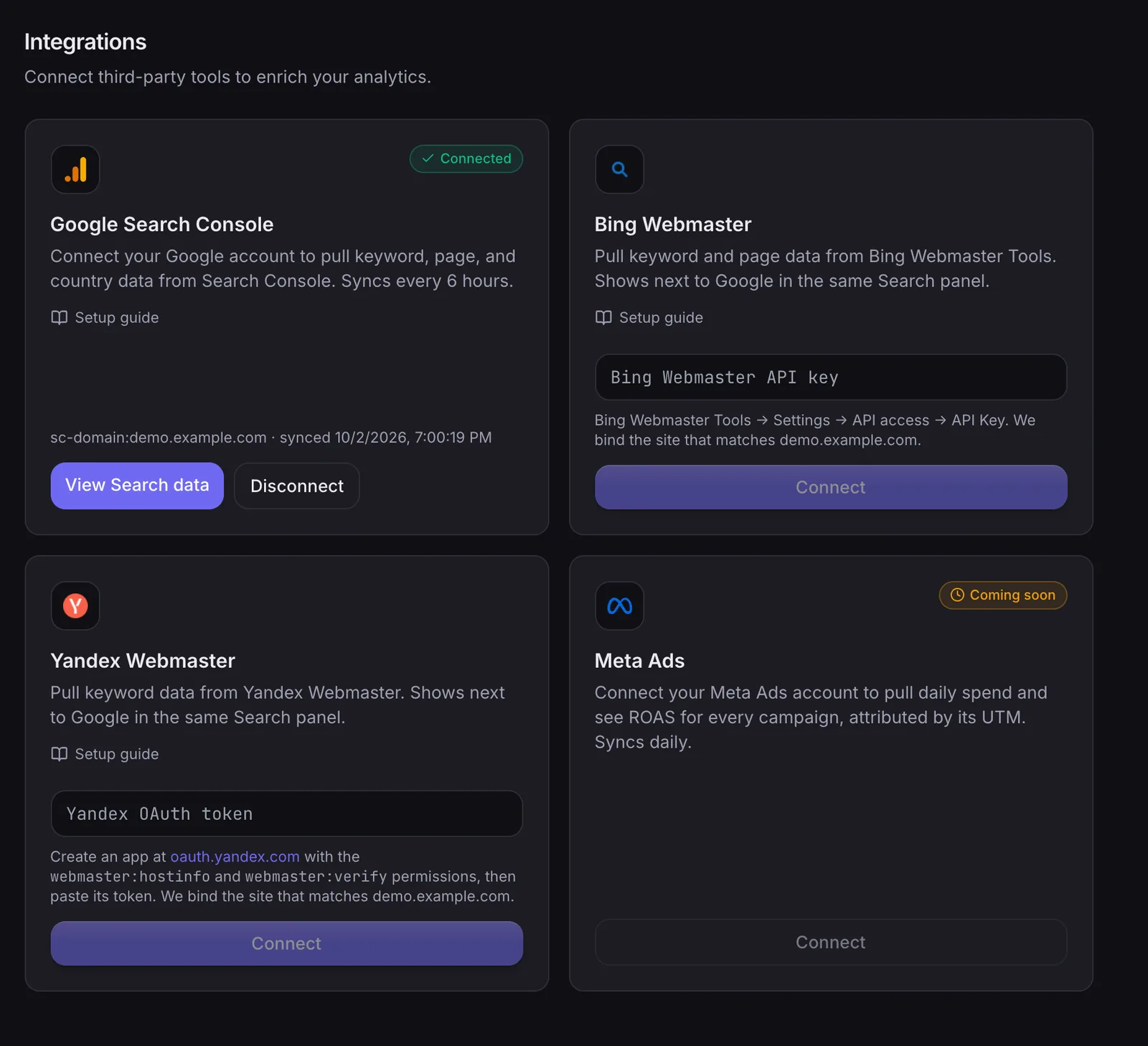
What NoirTrack shows after the connection
The integrations page shows Google Search Console on the same screen as your other source connectors, so you can confirm the connection from one place. After sync, Site → Search shows every search term you appear for, plus clicks, impressions, click-through rate, average position, top pages, top countries, and devices. Because revenue is already tied to visits, the same search term can sit next to sales in your account view. If you also want the matching rules for sales, revenue attribution explains how NoirTrack links each order back to a visitor.
The transactions view then shows sales with their source, which gives you a check against the Search Console rows. That matters when one query drives a lot of clicks but only a few buyers. You can see the traffic term, the landing page, and the money attached to that visit in one place.
A domain property works best when you cover both versions of your site. For example, sc-domain:example.com includes www.example.com, while https://example.com/ does not. If Search Console looks connected but empty, that domain match is the first thing to check.
How to interpret the ranking
A query with 20 clicks and 3 purchases can beat a query with 200 clicks and 0 purchases. Revenue changes the ranking from raw interest to buying intent, so the smaller term may deserve the next page update or ad test.
A high-click query with weak revenue still has a use. It can fill the top of the funnel, but it does not prove purchase intent on its own.
Use the ranking to look for terms that keep appearing beside revenue, then decide what to do with them. A term that converts often can become a landing page, an ad keyword, or a content update. A term that sends visits but no sales can stay in Search Console as a traffic signal, while your revenue view tells you where to spend time next.
Which report should you use to find money-making queries?
Use the keyword table when you want to see search demand, then switch to revenue when you want to see what that demand paid. Clicks tell you which queries bring visits. Revenue tells you which queries bring buyers. If you connect Search Console and your payment provider, the two views sit next to each other, so you can compare a query with the money it generated without guessing. If you also tag email or paid links with UTM parameters, you can separate search traffic from a later visit that converted through another channel. See how revenue attribution works and how campaign tags are read for the matching logic.
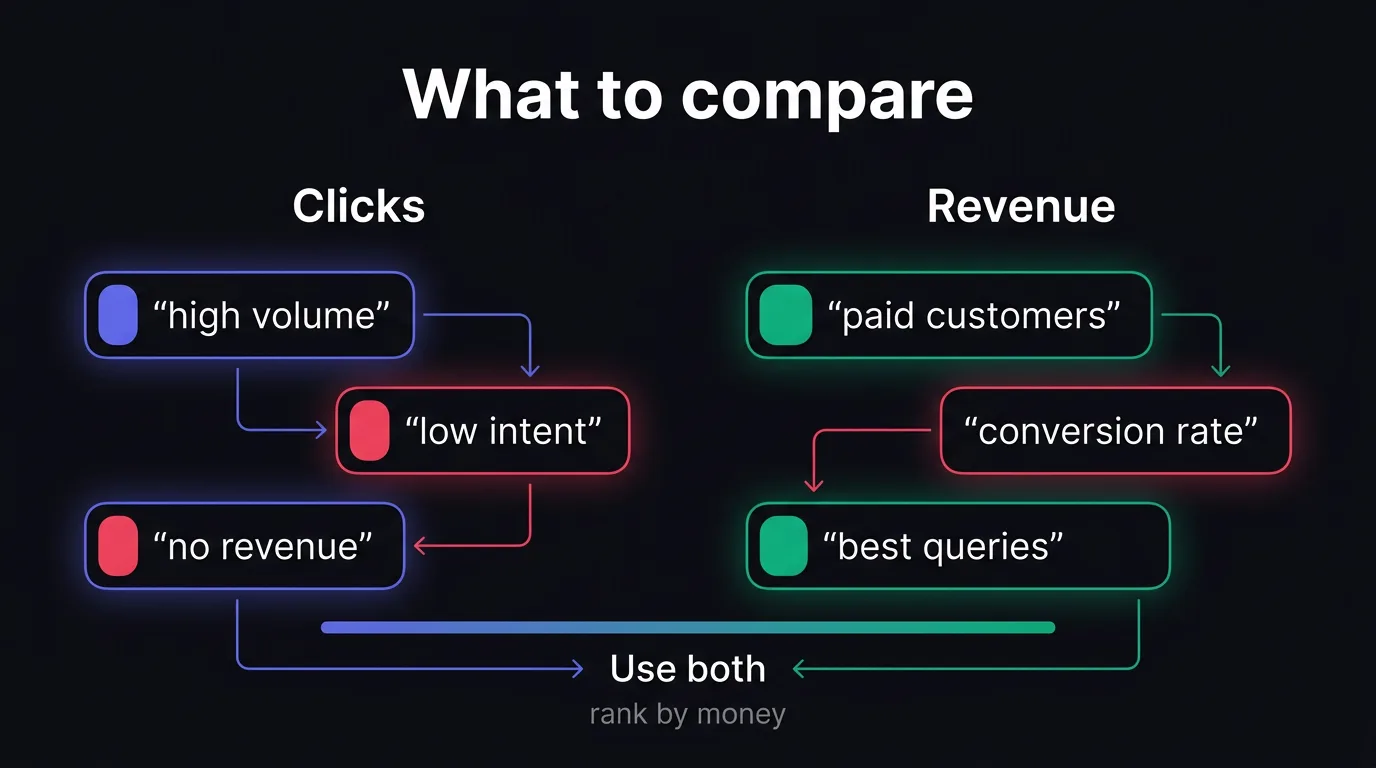
| Metric | Answers | Use it when |
|---|---|---|
| Clicks | Which queries and pages get attention | You need a quick read on search demand |
| Conversion rate | Which queries turn visits into buyers | You want to compare intent across queries |
| Revenue | Which queries produce paid customers | You need the shortlist of terms that matter |
A query with 120 clicks and zero revenue is not a winner for sales. A query with 18 clicks, a 9 percent conversion rate, and $540 in revenue is more useful, even if the traffic is smaller. That is the number that tells you where the money came from.
When to use filters
Filter to organic search when you want only Google query performance. Filter to a landing page when you want to see whether one page attracts buyers from search. Filter to a campaign when you want to compare search demand against a specific offer, such as a pricing page or a free trial page.
- Open the query view. Start with the full keyword table so you can see clicks, conversion rate, and revenue together.
- Filter to organic search. Remove email, paid, and direct traffic if you only want Google search visits.
- Narrow by page or campaign. Click a page or a source value to inspect one slice of traffic at a time.
- Save the view as a segment. Reuse it when you check the same slice every week.
A simple example helps. If utm_campaign=pricing-refresh brings in 40 visits from email and one buyer, while the same landing page also gets 30 organic visits and two buyers, the search slice may be doing more work than the campaign slice. Filter the dashboard before you decide where to put your next hour.
How do you turn query data into a repeatable workflow?
Turn query data into a repeatable workflow by moving from search terms to revenue in the same order every time: connect Search Console, match it with sales or goals, group queries by intent, then change the pages that already bring money. That is how you track which Google search queries bring paying customers without guessing which keywords deserve more work. If your sales cycle runs across more than one visit, pair revenue with a goal so you still catch research queries that help later buyers.
A numbered workflow you can repeat
-
Connect Search Console. Open Site → Settings → Integrations, connect the Google Search Console property that matches your domain, and wait for the first sync. NoirTrack pulls in keywords, landing pages, countries, and devices, so you can see search data next to the traffic and revenue you already track.
-
Track revenue or a goal. Connect your payment provider in Site → Settings → Revenue, or use a goal if the sale happens later. If a visitor signs up first and pays a week later, the goal tells you which query started the path, while revenue tells you which query closed it.
-
Open the sources view. Go to Site → Search and use the keyword table as your starting point. The table shows clicks, impressions, CTR, average position, and the money column once revenue is connected.
-
Sort by revenue or conversion rate. This narrows the list to queries that already prove they can sell. A query with 18 clicks and 3 paid conversions matters more than one with 300 clicks and no revenue.
-
Review the top queries with real sales. Look for shared intent across the winners. If three paying queries all mention "pricing," the page likely needs clearer pricing copy instead of a new article.
-
Update pages that already convert. Use the winning query language in the title, headings, and call to action when the intent matches. Keep the page shape the same if it already converts, then tighten the wording around the term that brought the sale.
What to change after you find winners
Start with the page that already earns the click and the sale. Add one clearer call to action, move the offer higher on the page, and bring the search phrase into the heading if it fits the promise of the page.
If a query earns revenue from a comparison page, keep that page and improve it. If a query only brings research traffic, build a clearer bridge to the next step instead of rewriting the whole site.
A concrete example helps: if pricing for small teams brings 4 paid signups in a month and team collaboration tools brings 40 visits with none, the first query gets the next edit, not the second.
What should you do next if you want this in place today?
Install NoirTrack, connect Search Console, and confirm revenue or goals are recording before you change content. Search data only helps when it sits next to sales, so start with the Search Console connection and revenue attribution setup.
Build a short list of queries that already produce customers, then use those terms on the pages that already convert. That gives you a simple target list for new copy, landing pages, and SEO updates.
Fast setup path
- Install the snippet. Use the quickstart or one-line script install if your site is simple.
- Connect Search Console. NoirTrack imports your query data into the site view.
- Turn on revenue attribution. Sales then tie back to the visit that brought them in.
- Check the first matched sale. Use that query list only after you see source and revenue together.
Questions, answered.
The best way is to connect Google Search Console for query data and your revenue source for sales data, then rank queries by revenue or conversion rate instead of clicks. Search Console tells you which queries send traffic. Revenue attribution shows which of those visits turned into customers, so you can sort by the queries that actually pay.
The setup usually takes one install, one Search Console connection, and one revenue source. That is a modest setup if analytics already run on the site, because you only need to connect the data you already collect. The hard part is usually cleaning up goal tracking or purchase events, not the query report itself.
Search Console alone shows clicks, impressions, and rankings, but it does not show which queries produced paying customers. That means a query can look strong on traffic and still bring little or no revenue. Once you connect Search Console to revenue or goals, you can sort by conversion rate and sales instead of guesswork.
The biggest mistake is optimizing for clicks only and ignoring conversion rate, assisted revenue, and the landing pages that actually close. A query with fewer clicks can still be worth more if it brings buyers. Traffic volume matters, but revenue and assisted conversions show which search terms support real growth.
Yes, one query can assist a later purchase without being the final source. A person may find you through a Google query, return later through email or direct traffic, and buy after that. A useful report should keep that earlier query in view so you can see the full path to revenue, not just the last touch.
Try NoirTrack
See which traffic actually pays.
Analytics with revenue attribution and a built-in bot firewall. One script tag, live in two minutes.
Free 14-day trial, no credit card
Written by NoirTrack team
The privacy-first Google Analytics alternative with a built-in bot firewall and revenue attribution. See which traffic makes you money, no cookie banner.


