How to Track Which Podcast Ads Bring Paying Customers
See which podcast ads lead to signups and sales by tagging links, attributing revenue, and comparing shows, episodes, and hosts.

NoirTrack team·Follow

Track podcast ads by giving each show, host read, or episode its own tagged link, then connect those visits to sales. With UTM campaigns and revenue attribution, you can rank sources by revenue instead of clicks alone. This breaks down if you never control the landing link or if purchases happen completely offsite without a way to pass source data.
To track which podcast ads bring paying customers means tying each ad mention to one link and one landing page, then matching that source to a sale later. Podcast ads are hard to judge from clicks alone because listeners often buy days later, on another device, or through a direct visit.
The fix is simple: tag every ad variation, send listeners to one clear landing page, and connect each purchase back to the source that started it. Once you can see revenue by show, episode, and host read, you can cut the ads that sound good but do not pay and keep the ones that do.
How do you track podcast ad revenue?
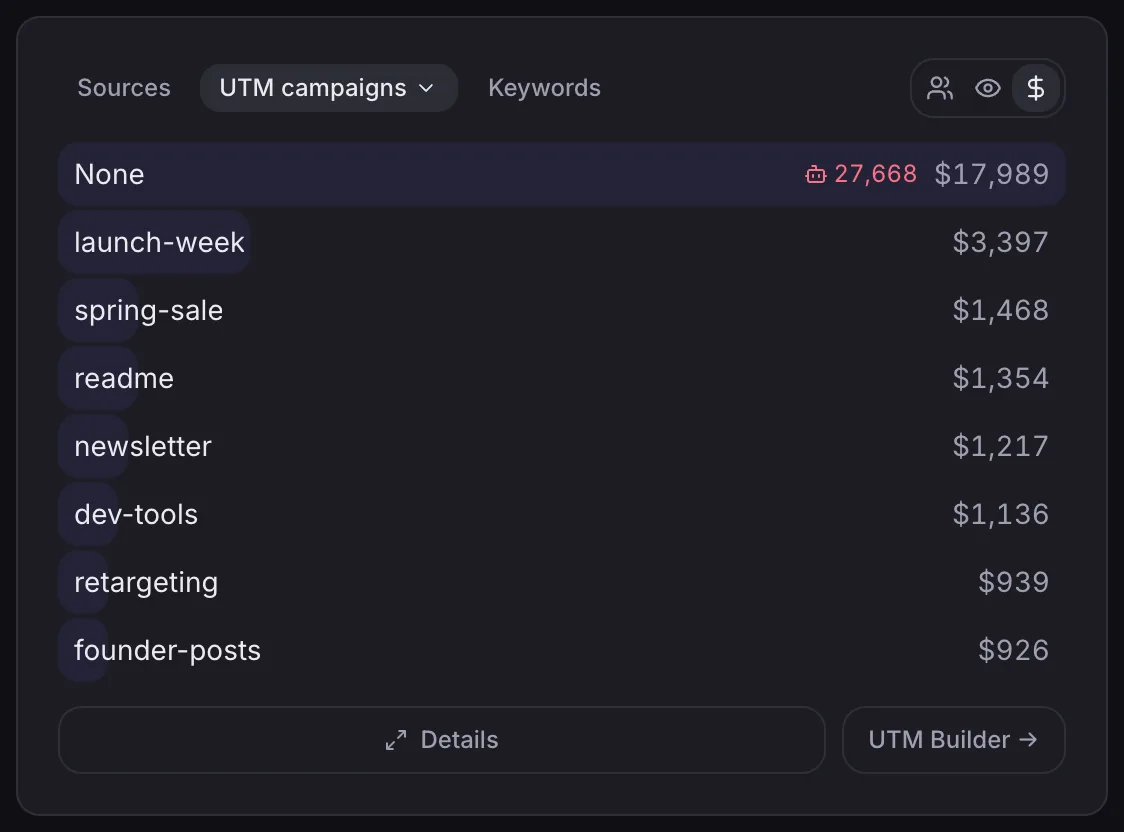
Track podcast ad revenue by tagging each ad link with its own source and campaign data, then tying the resulting visit to a purchase or signup in your revenue report. NoirTrack reads UTM parameters from the landing link and groups visits by source and campaign, so you can see which show or episode sent the click and which one led to sales. If you connect revenue tracking, the same visitor path can rank those ads by revenue instead of traffic alone. See the rules for campaign and UTM tracking and how revenue matching works.
A simple tagged link looks like this:
https://yoursite.com/podcast?utm_source=showname&utm_medium=audio&utm_campaign=episode42
What data should each ad carry?
Each ad should carry one podcast, one campaign, one landing page, and one offer. That keeps the data clean when you compare a host read, a pre-roll, and a repeat spot, because only the placement fields change.
Use the same structure every time. Keep utm_source for the show, utm_medium for the channel, and utm_campaign for the episode or placement. If a host records three reads for the same offer, change the field that marks the placement and leave the rest alone.
A generic homepage link hides that detail. A sale from that traffic often falls into Direct / Unknown, which makes it hard to track which podcast ads bring paying customers later. A dedicated landing page with one clear offer gives you a clean path from listen to click to purchase.
Which link tags should you use for podcast ads?
Use one clean UTM pattern for every podcast ad so you can track which podcast ads bring paying customers without mixing shows, hosts, or offers. Keep utm_source for the show or network, utm_medium for the ad type, utm_campaign for the offer or season, and utm_content for the host or episode. That gives you one readable trail from a spoken ad to a sale, and it keeps podcast traffic separate from newsletter and social campaigns so your revenue reports stay clear.
A simple rule works well: tag the link once, keep the naming lowercase, and reuse the same format on every placement. NoirTrack reads UTMs automatically and groups visits by source and campaign, so a tagged podcast link can show up beside revenue instead of disappearing into generic traffic. If you want a concrete example, use a URL like this:
https://yoursite.com/pricing?utm_source=acme-podcast&utm_medium=host-read&utm_campaign=summer-offer&utm_content=episode-42
That link tells you the show, the format, the offer, and the exact read. If the same episode runs on two hosts, you keep the source and campaign the same and change only utm_content.
Example UTM pattern
Use the pattern below across every podcast placement:
utm_source: podcast name or network.utm_medium: audio ad or host read.utm_campaign: offer or season.utm_content: host name or episode.
A campaign like spring-launch can cover every read for that offer. A content value like host-jane can separate Jane's read from Mark's without changing the rest of the tag. That makes side-by-side comparisons easier later, because the only difference is the part you meant to test.
Keep the landing page stable while the offer is live. If you change the page and the ad at the same time, you cannot tell which change caused the result.
When should you make a new campaign?
Make a new campaign when the offer changes, such as a different plan, discount, or lead magnet. Keep the campaign in place when only the wording changes, since small script edits should still roll up to the same offer.
Make a new utm_content value when you want to compare hosts, reads, or ad slots. If two versions run against the same page and same offer, utm_content gives you the split you need without creating a new campaign for every variant.
A practical split looks like this: utm_campaign=free-trial-jan stays fixed for the month, while utm_content=host-a and utm_content=host-b separate the two reads. If host A drives 48 trials and host B drives 31 from the same 1,000 listens, you can see the difference without changing anything else.
How do you compare podcast ads against each other?
Compare podcast ads by source revenue first, then check conversions and conversion rate, because revenue shows which show or read brings paying customers. Keep the same date range for every ad, since podcast traffic often spikes right after an episode publishes and drops over the next few days. Use filters to isolate one campaign or one source before you decide where to put more spend. NoirTrack groups tagged links by source and campaign, so the comparison works best when each placement has its own UTM values in the link you share. See the tagging rules in campaign tracking parameters and narrow the view with filters and segments.
Compare clicks, conversions, and revenue
Clicks tell you interest. Conversions tell you how many visitors bought. Revenue tells you whether the ad brought customers worth more than the next placement.
| Metric | What it shows | How to use it |
|---|---|---|
| Clicks | Listener response | Spot the ad that gets attention |
| Conversions | Buyers | Find the ad that turns visits into sales |
| Revenue | Money returned | Pick the placement worth buying again |
A show can lose on clicks and still win on revenue if it sends fewer but higher-value buyers. For example, one host-read might bring 40 clicks, 3 sales, and $600, while another brings 90 clicks, 2 sales, and $240. The second ad gets more traffic, but the first ad pays better.
If one read has the best revenue per click, buy more of that read before you expand to a wider package.
How NoirTrack shows which podcast ads pay
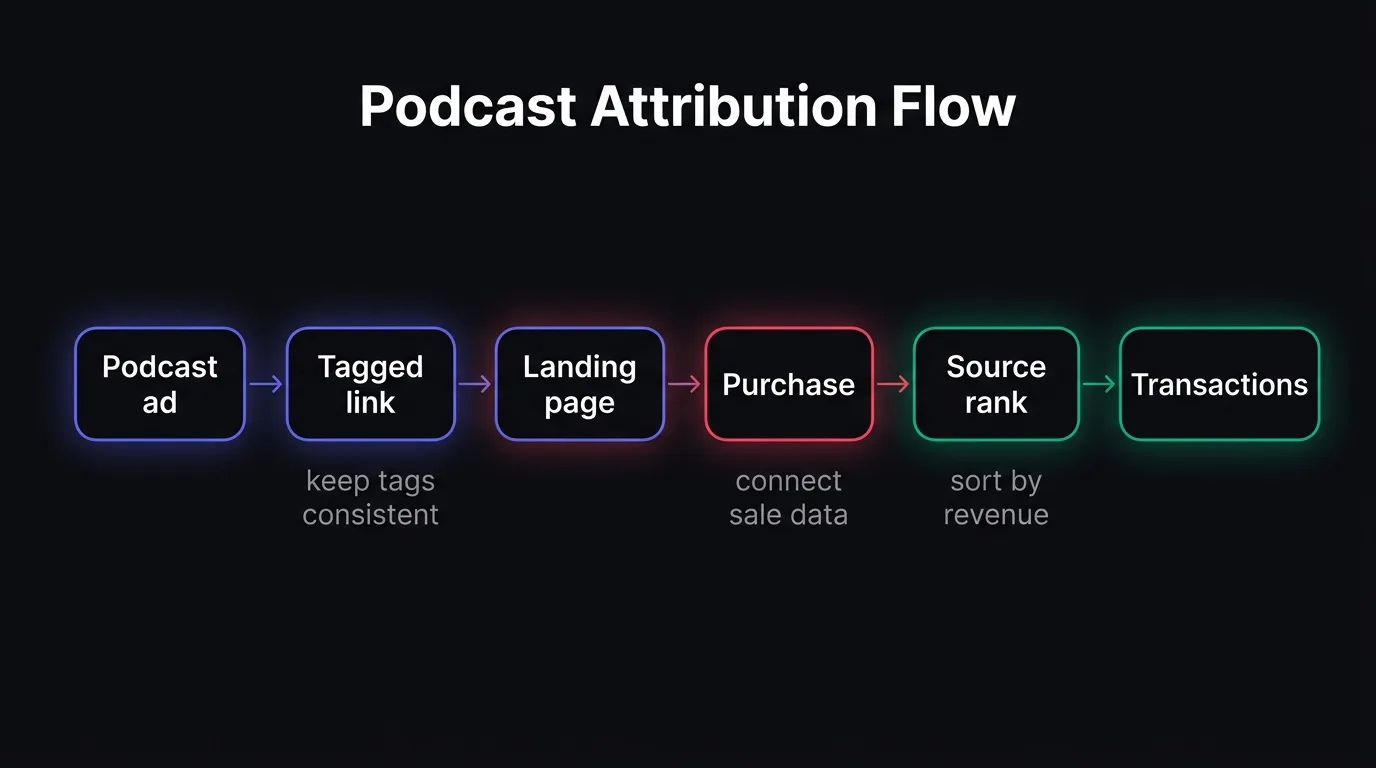
NoirTrack shows which podcast ads pay by tying each visit to a source, then tying sales back to that same visitor. The Sources view ranks podcast campaigns by revenue, and the Transactions view shows the sale behind each result, so you can see which show brought buyers instead of just listeners. If you tag the ad link with UTM parameters, NoirTrack groups the traffic automatically and keeps one campaign separate from the rest of your site traffic, as described in the tracking parameters guide.
Use the Sources panel first
Start in Sources and sort by revenue, not sessions. A podcast spot that sends 40 visits and $1,200 in sales matters more than one that sends 400 visits and $0. That simple check keeps you focused on paying traffic.
- Open the Sources view and find the podcast campaign.
- Compare its revenue with its session count.
- Open the same view after a guest appearance, live read, or renewal and check whether revenue moved.
Use the filter controls when one show is mixed in with other traffic. For example, utm_source=podcast and utm_campaign=show-name can isolate one sponsor placement so you can compare it with last month's read or a different host read. Filters narrow the whole dashboard to that slice, including revenue, as shown in the filters guide.
Use Transactions for proof
Open Transactions when you need proof that a podcast ad led to a sale. Each order shows the source attached to that customer journey, so you can check the exact path behind the revenue number.
- Open a transaction from the list.
- Confirm the source and campaign on that sale.
- Use that record when a sponsor asks which ad brought the paying customer.
A simple example makes the check clear. If a listener buys after clicking utm_source=podcast&utm_campaign=acme-saas, and the Sources view shows $180 in revenue for that campaign, the Transactions view should show the same campaign on the sale record. If the source is missing, the journey was not connected correctly, so fix the link tags or the checkout path before you trust the report.
Use Sources for the ranking and Transactions for the receipt. That pairing lets you track which podcast ads bring paying customers without guessing which placements only drove clicks.
What is the fastest way to launch podcast attribution?
Set up one offer page, one UTM format, and one revenue view before you buy more ads. Tag each podcast link with a source and campaign so NoirTrack can group visits from the start. The utm_source value is enough to get clean source data, and the rest adds detail for later comparison. If you want the setup to track which podcast ads bring paying customers, connect revenue too, then check that one sale carries the same source you clicked.
Numbered rollout
- Pick one offer. Use a single page and a single call to action.
- Tag each podcast link. Follow the UTM parameter format for every host readout or show note link.
- Send traffic to one page. Keep the landing path stable so the source data stays readable.
- Connect revenue tracking. Follow how revenue matching works before launch.
- Review revenue by source. Click the podcast source in Sources, then open Revenue for the sale proof.
Questions, answered.
Podcast ad attribution is the process of linking a listener who clicked or visited from a podcast ad to a later signup or purchase. It usually uses tagged links on the ad URL, then matches that visit to a revenue event in analytics or checkout tracking. That lets you see which episode, host read, or sponsor slot led to paying customers.
The basic setup is light: create tagged links, install analytics, and connect revenue tracking. The ongoing work is keeping the naming consistent across every sponsor spot, so one ad does not show up under three different labels. Once that structure is in place, reporting stays readable.
Downloads and clicks measure attention, while revenue shows whether the ad brought customers. A show with fewer downloads can still win if its listeners buy more often or use a better landing page. That makes revenue the cleaner test for whether the placement paid for itself.
Sending every listener to the homepage or using untagged links is the most common mistake with podcast ads. That makes the source disappear, so later sales show up as Direct or Unknown instead of the episode or host that drove them. A dedicated, tagged landing page keeps the path clear.
Yes, podcast ads can still be tracked when the sale happens later, as long as the original visit and the eventual purchase are tied together in your analytics or checkout system. That is the point of revenue attribution. A listener might click today and buy next week, and the ad still gets credit if the tracking chain stays intact.
Try NoirTrack
See which traffic actually pays.
Analytics with revenue attribution and a built-in bot firewall. One script tag, live in two minutes.
Free 14-day trial, no credit card
Written by NoirTrack team
The privacy-first Google Analytics alternative with a built-in bot firewall and revenue attribution. See which traffic makes you money, no cookie banner.


