How to Track Which YouTube Videos Bring Paying Customers
See which YouTube videos drive sales, not just views, by tagging links, tracking goals, and matching revenue back to each video.

NoirTrack team·Follow

Tracking which YouTube videos bring paying customers means tying each video to a separate link and following that traffic until it becomes a signup, trial, or sale. The easiest way is to tag every YouTube link with a unique UTM campaign and connect those visits to purchases or trials. That gives you a source-by-source revenue view instead of a view count, so you can rank videos by money made. It does not work well if you never include trackable links or if your checkout and analytics are disconnected.
YouTube views are not the same as customers, so the first step is to measure what happens after the click. Use one unique link per video, then tie that traffic to signups, purchases, or trial starts. Once revenue is connected, you can see which videos earn their keep and which ones only get attention.
After this, you can set up tracking that shows which videos drive revenue, not just clicks.
Why YouTube views do not tell you which videos make money
YouTube views show attention, not revenue. A video with 10,000 views can bring curious visitors who never buy, while a smaller video can send 30 buyers who were already looking for your product. To track which YouTube videos bring paying customers, you need to separate each video's traffic first, then connect that traffic to visits, signups, purchases, and revenue.
A view count also mixes together different intents. Someone who found your video through search, someone who clicked from your channel page, and someone who used the link in the description are not all worth the same amount. NoirTrack reads campaign parameters automatically, so each video link can keep its own label and show its own revenue in the dashboard. That is the only way to compare one video against another without guessing.
What you should measure instead
Measure visits, signups, purchases, and revenue for each video link. If a video sends people to a trial page, watch the trial signup rate. If it sends people straight to checkout, watch purchases and revenue. If your product has a longer path, measure the step that shows buying intent, such as a pricing-page view or a checkout start, using goals.
Use the same customer journey from click to checkout so the source stays attached to the sale. For example, if two videos both send people to https://yoursite.com/pricing, tag one as utm_campaign=demo-walkthrough and the other as utm_campaign=feature-review. The page is the same. The revenue is not. NoirTrack groups those visits separately when the link carries the campaign data in tracking parameters.
The basic attribution rule
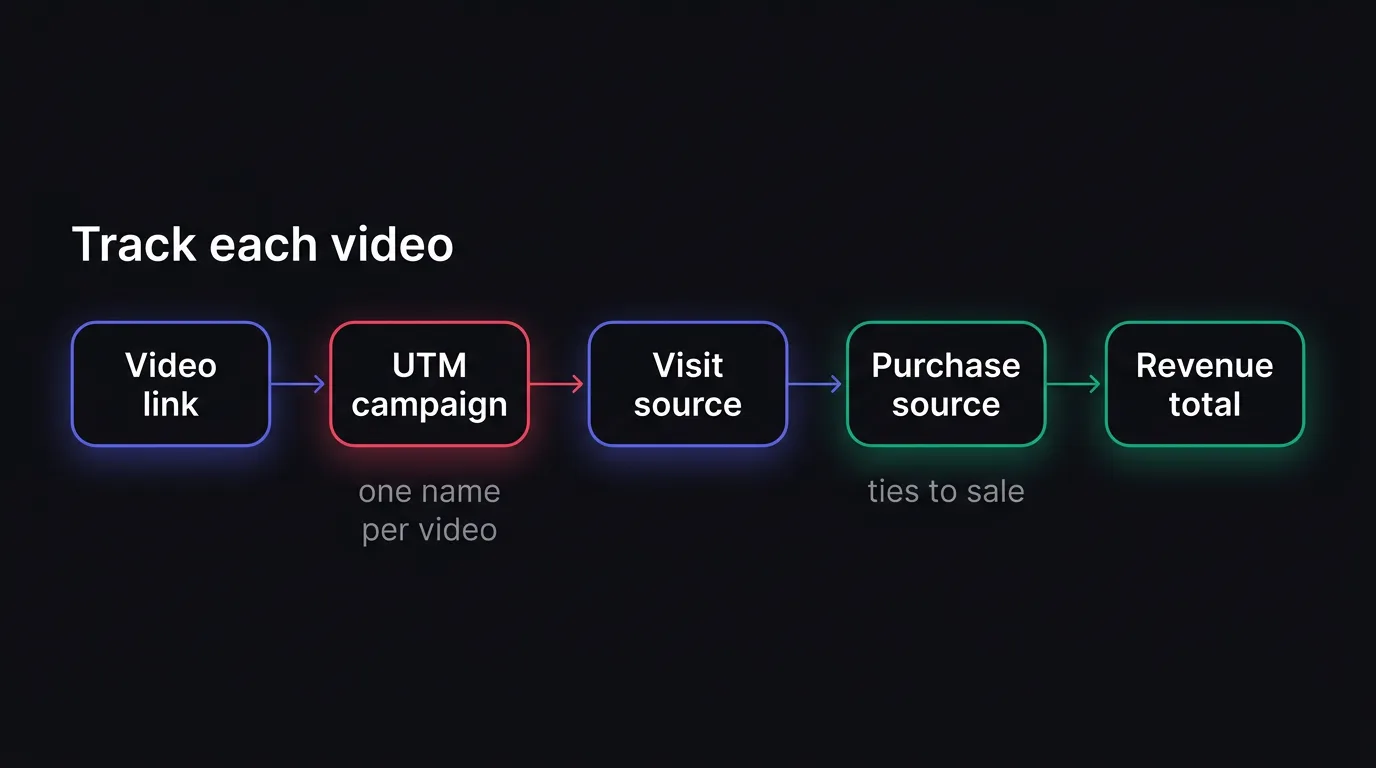
Every video needs its own campaign label, even when the destination page does not change. Put that label on the link in the description, pinned comment, or card, and keep it on the path that leads to payment. A sale only matches back cleanly when the label survives that whole journey.
Without that label, the visit falls into Direct or Unknown once the buyer reaches checkout. If three videos all point to the same landing page with no campaign data, you lose the ability to tell which one paid for itself. A simple pattern like utm_source=youtube&utm_medium=social&utm_campaign=video-name gives each video a separate row in your reports and keeps the comparison honest.
How to tag every YouTube video link so each one is separate
Tag every YouTube video with its own UTM campaign name, keep utm_source and utm_medium the same across videos, and send all clicks through one tracked URL pattern. NoirTrack reads those parameters automatically, so each video lands in its own campaign report, and revenue can follow it when you connect revenue tracking. Use the same landing page when you want a clean comparison. Change the page only when the offer changes, such as a demo video pointing to /demo and a tutorial pointing to /pricing. Put the tracked link in the description first, then repeat it in the pinned comment and any end-screen destination you control.
A simple naming pattern that scales
Use the topic in utm_campaign, because you can read that later without opening a spreadsheet. A stable pattern looks like this:
https://yoursite.com/pricing?utm_source=youtube&utm_medium=video&utm_campaign=how-to-build-a-sales-funnel
Keep utm_source=youtube and utm_medium=video on every upload. That lets campaign names do the separating, which makes comparisons cleaner when you review traffic in campaign reports. If you write youtube, YouTube, and yt in different uploads, NoirTrack treats them as different buckets. One typo creates a second row, so pick one spelling and use it every time.
- Pick one source and medium. Use the same values on every video link.
- Name each campaign after the video topic.
how-to-choose-a-crmworks better thanvideo-14. - Keep the landing page stable when the offer is the same. That way one page and one offer stay easy to compare.
- Change the landing page only when the promise changes. A different offer needs a different page, or the numbers blur together.
Where to place the link
Use one canonical tracked link in the description first. That gives every viewer the same destination and keeps the source clean.
Repeat the same URL in the pinned comment when you want a second path to the same page. Do not rewrite it by hand. Copy the exact link, including the UTM parameters, so the click still rolls into the same campaign.
If the video points to a freebie or demo, use that same tracked URL there too. The point is consistency. If the description says one thing and the pinned comment says another, the click paths split and the report becomes harder to trust.
A creator who publishes three videos in a month can keep them separate with three campaign names and one landing page. That gives three rows in the report, three click counts, and three revenue totals, which is enough to see which video brings buyers instead of just viewers.
How to connect YouTube traffic to revenue in NoirTrack
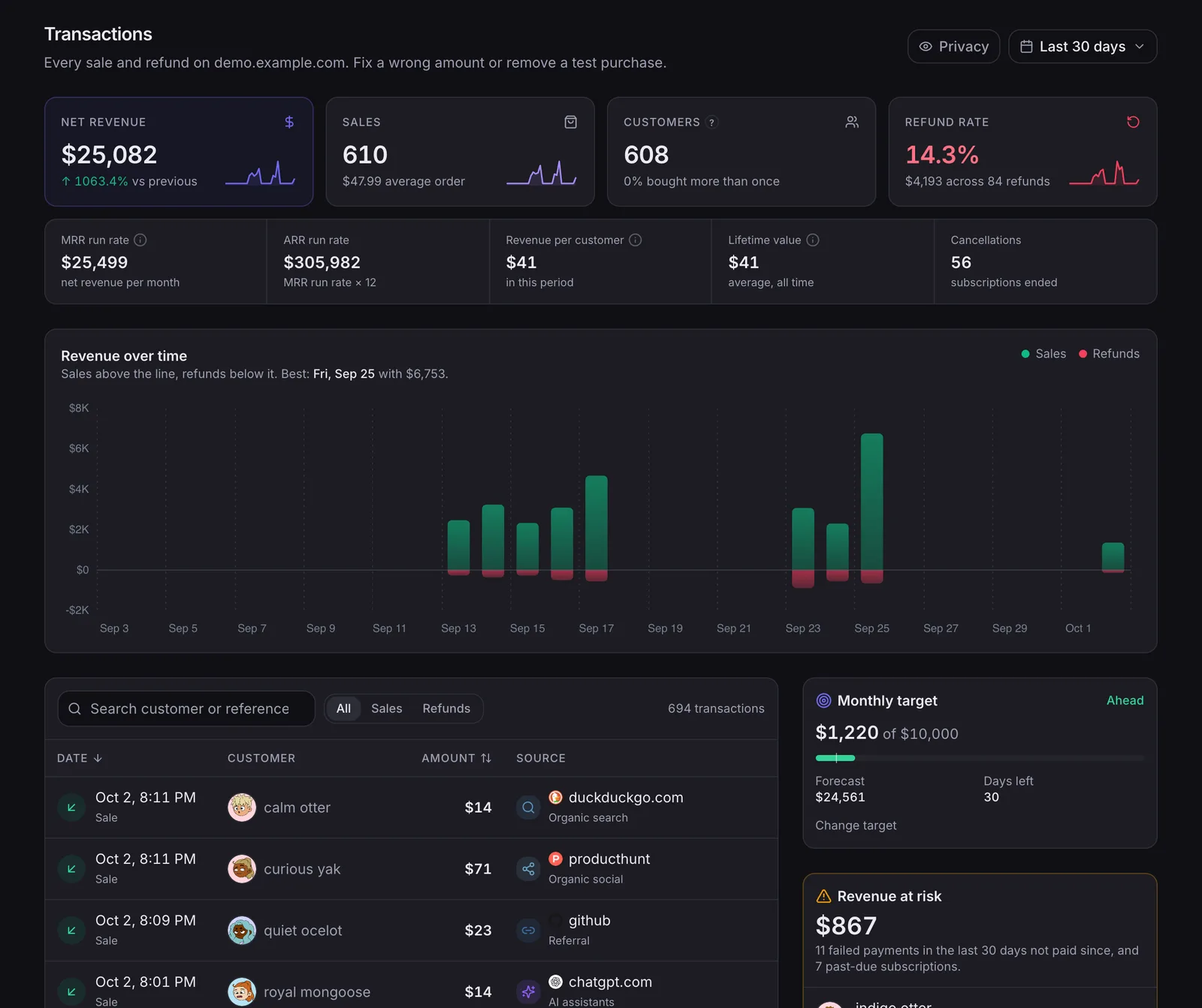
NoirTrack links a visit to the sale that came from it, so you can see which YouTube videos bring paying customers instead of just views. The Campaigns and UTM view groups tagged visits by source and campaign and ranks them by revenue, while the revenue pages show the source panel and the transactions behind each total. Once your payment provider is connected, purchases, refunds, and cancellations can be tied back to the visitor source instead of living in a separate billing tool. See the setup in /docs/tracking-parameters and /docs/revenue-attribution.
What to connect first
- Connect payments. Open Site → Settings → Revenue and connect the processor you charge through. NoirTrack supports direct connections to providers like Stripe, Paddle, Polar, Lemon Squeezy, Dodo Payments, and Creem, and it can also match sales from your backend or SDK when that fits your setup.
- Tag each video link. Add UTM parameters to every link you place in a description, pinned comment, or community post. NoirTrack reads them automatically and groups the visit by source and campaign, so one video does not get mixed with another.
- Keep the values stable. Use the same
utm_sourcefor all YouTube links and varyutm_campaignper video. This keeps the dashboard readable when you publish more than one video about the same offer.
A simple link looks like this:
https://yoursite.com/?utm_source=youtube&utm_medium=video&utm_campaign=pricing-demo
That one line is enough to separate a pricing demo from a product tour or a tutorial, because the campaign name stays attached to the visit and the sale.
What to look for in the dashboard
Open the Sources panel and compare campaigns by revenue first. A video with 800 visits and $120 in sales beats a video with 2,000 visits and $0, because the first one pays back.
Then open Transactions. The table shows the total, the chart, and each sale with its source, which lets you confirm whether a specific video drove the order or whether the customer came from somewhere else later.
If a video gets visits but no sales, start by checking the offer that video sends people to. Tracking can show the path clearly, but it cannot fix a page that attracts the wrong viewers or asks for too much before the first buy.
How to compare YouTube videos by revenue, not just clicks
Compare YouTube videos by revenue first, then use conversion rate and customer quality to explain why one video wins. A video with fewer clicks can still bring more money if it attracts buyers who convert faster or spend more over time. Use a filter for one campaign or source at a time so you are not mixing one upload with every other channel, then rank the videos inside that slice. If you want to filter the dashboard to one campaign, start there before you compare anything else.
The metrics that matter most
Revenue per video is the cleanest measure because it shows what each upload earned, not just how much attention it got. A video with 120 visits and $900 in revenue beats one with 800 visits and $300 in revenue.
Conversion rate shows how well the video turns viewers into buyers. If two videos bring the same revenue, the one with the higher conversion rate usually points to stronger intent or better offer fit.
Customer quality matters when one topic brings buyers who stay longer, upgrade more often, or come back for another purchase. NoirTrack's revenue tracking links sales back to the visit, source, and campaign that led to them, so you can compare the buyers behind each video instead of guessing from view counts.
- Pick one slice. Open the dashboard for a single YouTube campaign or source so you compare like with like.
- Read revenue first. Sort the videos by money, not by views or clicks.
- Use conversion rate as the tie-breaker. If two videos earn close amounts, keep the one that converts better.
- Check buyer quality. Look for videos that bring repeat customers or larger first orders.
A quick comparison table to use
Use a simple table with one row per video and one decision at the end.
| Video | Views | Visits | Signups | Purchases | Revenue | Decision |
|---|---|---|---|---|---|---|
| Video A | 2,400 | 180 | 24 | 6 | $720 | Best revenue |
| Video B | 4,900 | 310 | 18 | 4 | $520 | More traffic |
| Video C | 1,100 | 90 | 20 | 7 | $840 | Best conversion |
In this example, Video C wins because it makes the most revenue, even though Video B gets more traffic. Video C also converts more of its visitors into purchases, so it gives you a stronger signal for the next video topic. Ignore views unless they help explain the revenue gap.
What to fix when a YouTube video gets clicks but no sales
If a YouTube video brings visits but no revenue, fix the tracking chain before you change the video. Check that each video has its own tagged link, that your checkout records a sale, and that NoirTrack can match the payment back to the same visitor. If the dashboard shows sales under Direct or Unknown, the visit and the payment are not joining up in the same path.
The most common mistakes
The most common mistake is using one shared link for every video. That makes every click look like the same source, so you cannot separate a strong tutorial from a weak one. Tag each video link with its own campaign data, then keep utm_source and utm_medium stable so the reports roll up cleanly. NoirTrack reads those parameters automatically, and you can review them in the campaigns report.
A second mistake is sending viewers to a page that does not match the video promise. If the video says one thing and the landing page asks for something else, people click and leave before they buy. A third mistake is tracking clicks only. If you never record revenue, the report can tell you which video got attention, but not which one paid.
A simple example makes the problem obvious. If one video sends 120 clicks and the checkout records 3 purchases, but all 3 land in Direct, the link tag may be fine and the sale match may be broken. If another video sends 90 clicks and records 5 purchases tied to its campaign, that video is doing the work you care about.
When attribution breaks
Attribution often breaks when the checkout runs on a separate domain and the payment flow does not pass the visitor through cleanly. It also breaks when the payment event never gets sent back into analytics, so the sale exists in your processor but not in your reports. NoirTrack matches sales to the visitor, source, and campaign that led to them when revenue tracking is connected, so check the revenue attribution setup before you judge the video.
Fix the measurement chain in this order:
- Confirm the tagged link. Open the video URL and check that the UTM values are present.
- Confirm the sale event. Make one test purchase and verify that it appears in your revenue report.
- Confirm the match. Check whether that purchase is tied to the expected source and campaign.
- Confirm the checkout path. If the sale lands on another domain, make sure the same visitor can still be identified there.
If one step fails, the video is usually not the real problem. The tracking is.
Set up your YouTube tracking workflow for the next video
Set up the workflow before you publish the next upload so every video has a tagged link and a revenue check from day one. Keep one naming pattern for campaigns, one place to read sales, and one review rule for each upload. That is the fastest way to track which YouTube videos bring paying customers without sorting through mixed traffic.
A practical launch checklist
Create the tagged URL with utm_source=youtube and a clear utm_campaign, then paste it in the description and pinned comment. NoirTrack reads those parameters automatically and groups visits by source and campaign. After the first paid orders land, open the revenue view and confirm the visit is matched to sales. See /docs/tracking-parameters and /docs/revenue-attribution.
How to review performance each month
Compare videos by revenue per visit, then keep the topics that bring buyers and drop the ones that only add clicks. Use the same month-end review every time so each upload gets judged on the same numbers.
Questions, answered.
Tag each YouTube video link with its own UTM campaign, then connect purchases or signups back to those visits so you can rank videos by revenue. That gives each video its own trail from click to sale. If one video sends fewer visitors but more paying customers, the numbers will show that instead of hiding it inside a shared link.
YouTube revenue tracking usually takes one tracked link per video plus a connected payments source. After that, the dashboard can attribute sales automatically when a visitor clicks the link and later buys or signs up. The main setup work is naming the links clearly so each video keeps its own source data.
Clicks and views measure attention, while revenue attribution measures money. A video can get modest traffic and still drive the most sales if the audience is ready to buy. That is why revenue tells you which videos change business results, not just which ones get watched.
The biggest mistake is reusing one link for every video, which mixes all traffic together and makes it impossible to know which video sold. Once every video points to the same URL, you lose the split between one clip and the next. Separate links keep the purchase data tied to the right video.
Sales often show up as Direct or Unknown when the source label is lost before checkout or the payment event is not tied back to the visitor journey. A redirect, an app switch, or a checkout flow that drops referrer data can hide the original YouTube source. The fix is to keep the tracking link and purchase event connected end to end.
Try NoirTrack
See which traffic actually pays.
Analytics with revenue attribution and a built-in bot firewall. One script tag, live in two minutes.
Free 14-day trial, no credit card
Written by NoirTrack team
The privacy-first Google Analytics alternative with a built-in bot firewall and revenue attribution. See which traffic makes you money, no cookie banner.


